

Admit it: you’ve got batch operations. Although many of us have trained ourselves to think in terms of real-time events acting on individual records, somewhere in your organization, in places you don’t want to talk about at parties, you want them in your enterprise; you need them in your enterprise. We use words like transaction, workflow, error-handling; we use these words as the backbone of a lifetime supporting production applications.
Ok, ok - I’m not going to do the whole monologue, but you get the idea. Where these processes exist, they’re likely deep in the stack of your enterprise, very possibly connecting you to partners you might not have been able to convince to move to your state-of-the-art real-time API backbone. And when they break, impacts can be large. Worse yet, if they fail silently or fail to process all the records they’re supposed to, the effects of these failures can go unnoticed for a while, and the resulting mess can be difficult to clean up.
Setting up the sample
As much as this article is about illustrating important processing guidelines and techniques, I’m also going to chronicle my use of AI tools to construct the example – showing prompts and responses for steps along the way. I’ll start with repo creation, using ChatGPT for this one:
I want to create a repo to illustrate techniques to track inputs vs. outputs in batch operations, ensuring that no records are lost to errors or data leakage during processing. Suggest a suitable repo name.
I’ve stored prompts and responses in the accompanying github repo for many of these examples. I’ll link them in so you can review details if you choose. Following the naming prompt (I chose “batch-lineage-patterns” for the repo name), ChatGPT had some suggestions for next steps. Again, the full responses are recorded in my repo. Some of these are pretty good; others probably won’t fit with my intent for this illustration.
For the next step, I dropped into VS Code and began laying out an overall scenario to illustrate, asking copilot to generate a file to populate a Sqlite DB and another file to serve as the example file for updates:
Generate two files to illustrate a fictional scenario. In this fictional scenario, an automotive parts retailer is going to receive a file from a supplier with car part inventory and pricing information. Synthesize sample data to illustrate error handling in processing a batch update file. Synthetic data needs to include the following:
- Sqlite data to simulate the master data of the retailer. Fields should include partId, vendorName, partName, cost, availableQty, listPrice
- CSV update file from supplier. Fields should include partId, vendorName, partName, supplierPrice, availableQty
The sample data set should include 100 rows in the CSV. Of the 100 rows, 95 should be legally parsable (data valid per field names and data types). Five rows should have bad data - an extra field, or a missing field, or an improperly escaped comma in a name field, for instance. For the 95 rows that are parsable, 75 should map to parts found in the Sqlite master data. The remaining 20 should be parts that aren’t found in the master file so that a lookup error occurs.
Generate a SQL file for the master data load suitable for use in this type of loading in application startup:
context.Database.ExecuteSqlRaw(sqlScript)Also generate a CSV file to show the batch data update described above.
I saved the resulting files - they’re also in github. My evaluation? Not bad for a quick prompt, and in fact, the results are probably sufficient for the illustration I’ve got in mind. Having seen the output, there’s room for some additional scenario specification, and for a more durable use case, I’d go back and reinvest in the specs.
Introducing Filehelpers
The batch-handling concepts here are technology-agnostic, but one package I’ve used with great success in the past will help illustrate some of the best practices I prefer. Filehelpers.net is a nuget package that makes flat-file handling child’s play. For this example, we’ll start with a simple CSV use case:
Following filehelpers quick start guide (https://www.filehelpers.net/quickstart/), create a mapping class for supplier_update.csv - call the class SupplierUpdate.cs.
The mapping class, as you can see, tracks cleanly to the fields in the CSV. Attributes allow formatting and validating fields on read and write - all very easy to extend if needed.
using FileHelpers;

namespace filehelpers_examples
{
    // mapping class generated based on supplier_update.csv
    // follows FileHelpers quick start conventions
    [DelimitedRecord(",")]
    [IgnoreFirst] // csv file contains a header row
    public class SupplierUpdate
    {
        // note: field names match header columns exactly (case-sensitive mapping not required)
        public int partId;
        public string? vendorName;
        public string? partName;
        public decimal supplierPrice;
        public int availableQty;
    }
}
To use the mapping class, just create an engine of that type:
using FileHelpers;
using filehelpers_examples;

var engine = new FileHelperEngine<SupplierUpdate>();
var result = engine.ReadFile("../../../supplier_update.csv")
If you run the sample at this point, you’ll see a ConvertException - something’s gone awry:
Exception has occurred: CLR/FileHelpers.ConvertException
An unhandled exception of type 'FileHelpers.ConvertException' occurred in FileHelpers.dll: 'Error Converting 'Many' to type: 'Decimal'. '
If you’ve worked with batch files, you’re no doubt familiar with this sort of exception. Something’s not right somewhere in that hundred-row input file, but where? Filehelpers can give us some help here:
var engine = new FileHelperEngine<SupplierUpdate>();
// Switch error mode on
engine.ErrorManager.ErrorMode = ErrorMode.SaveAndContinue;
var result = engine.ReadFile("../../../supplier_update.csv");
if (engine.ErrorManager.HasErrors)
    engine.ErrorManager.SaveErrors("../../../supplier_update.errors.out");
Now, when we run, not only are we able to load all the good records successfully, we also now have a file with real descriptions of the errors found:
FileHelpers - Errors Saved at Wednesday, March 4, 2026 7:26:49 PM

LineNumber | LineString |ErrorDescription

97|96,VendorA,"Bad,Name",23.00,20|SupplierUpdate|In the field 'supplierPrice': Error Converting 'Name"' to type: 'Decimal'.

98|97,VendorB,Too,Many,Fields,34.00,22,EXTRA|SupplierUpdate|In the field 'supplierPrice': Error Converting 'Many' to type: 'Decimal'.

99|98,VendorC,MissingPrice,,25|SupplierUpdate|Line: 99 Column: 25. No value found for the value type field: 'supplierPrice' Class: 'SupplierUpdate'.  -> You must use the [FieldNullValue] attribute because this is a value type and can't be null or use a Nullable Type instead of the current type.

100|99,VendorA,MissingField,44.00|SupplierUpdate|Line: 100 Column: 24. Delimiter ',' not found after field 'supplierPrice' (the record has less fields, the delimiter is wrong or the next field must be marked as optional).

 And, as you might expect, there’s support to read and parse the error file, as well, or to examine the errors at runtime.  In fact, setting a breakpoint after the read, we’ll see that between the engine and the result variables, we have all the information we need to ensure that all the records in the batch remain accounted-for.

Debug.WriteLine($"Read {engine.TotalRecords} records; {result.Length} successfully read, and {engine.ErrorManager.ErrorCount} errors");

Read 100 records; 96 successfully read, and 4 errors
This ultra-simple example illustrates some elementary, but often-overlooked principles of batch record processing.
Rule 1: Don’t lose records!
As shown here, always know how many records you take as inputs, and when you’re done, you must always be able to account for each record - be they successfully processed or not.
Rule 2: Explain what’s gone wrong.
One of the things that’s made me a fan of filehelpers is the information provided when errors occur. Don’t make your users settle for anything less than knowing which records failed, and what’s gone wrong when failures occur. Note how, in the error file above, we can see line numbers, the original input line, and a clear description of why the record could not be read. These bits of information will make it quick and easy to find the offending record in the input file. Of course, you don’t have to use filehelpers to do this, and the presentation doesn’t need to look the same, but please do not leave your users wondering what went wrong or where to find the problem.
Extending the sample
So far, our example is still trivially simple. Let’s add another processing step – one more place for something to go wrong. The point of this made-up scenario was to load a supplier update file and update inventory numbers, so now that we’re able to read the supplier file, let’s try to update the inventory values in our made-up master database.
A little refactoring supports creation of a Sqlite context, loaded at runtime from the values we asked copilot to generate earlier:
    this.Database.EnsureDeleted();
    this.Database.EnsureCreated();
    string sql = File.ReadAllText(filename);
    this.Database.ExecuteSqlRaw(sql);
I moved the filehelpers methods into a InventoryFileEngine class and created an IInventoryFileEngine interface to support testing. A new InventoryUpdate class supports injection of the db context and file engine, and I extracted a results class to hold status from one operation to the next:
    struct BatchFileResult
    {
        public string DataFilePath { get; set; }
        public string ErrorFilePath { get; set; }
        public int TotalRecords { get; set; }
        public int RecordReadSuccessCount { get; set; }
        public int RecordReadErrorCount { get; set; }
        public int RecordUpdateSuccessCount { get; set; }
        public int RecordUpdateErrorCount { get; set; }
    }
With these changes in place, we can illustrate an update step that matches the part against our “master” data so that we could (presumably) update the inventory level for each part. This lookup is trivially simple, and of course, we’d be very unlikely to look up the part based on part name, but I chose to work with the sample data generated by copilot, and I don’t think this diminishes the point of the sample.
        public BatchFileResult ApplyUpdates()
        {
            var result = _engine.Result;

            int successCount = 0;

            int updateFailureCount = 0;
            if (_engine.SupplierUpdateRecs != null)
            {
                foreach (var record in _engine.SupplierUpdateRecs)
                {
                    var partName = record.partName;
                    if (!string.IsNullOrEmpty(partName))
                    {
                        var foundPart = _context.FindPartByPartName(partName);
                        if (foundPart != null)
                        {
                            successCount++;
                        }
                        else
                        {
                            updateFailureCount++;
                        }
                    }
                }
                result.RecordUpdateSuccessCount = successCount;
                result.RecordUpdateFailureCount = updateFailureCount;
            }
            return result;
        }
The result structure now has enough information to track input records through both initial read and downstream update operations, and armed with this sort of data, we can create a sankey diagram in mermaid to show these results graphically. Here’s the mermaid syntax:
config:
  sankey:
    showValues: true
---
sankey-beta

Read, Parsed, 96
Read, Parse-Error, 4
Parsed, Update Success, 80
Parsed, Update Failure, 16
And the resulting graph:
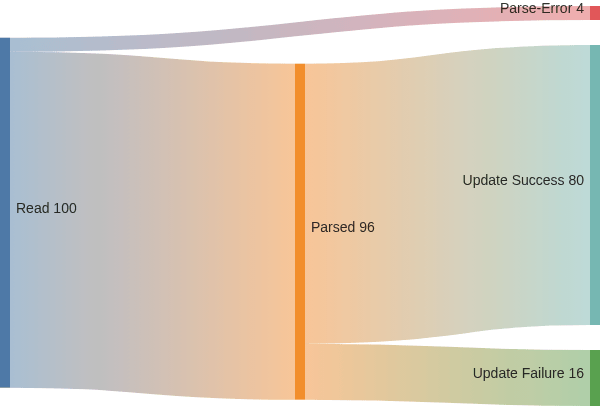
I love mermaid for applications like this because the syntax requires no graphics processing at all. The resulting syntax drops right into wikis (including github, Confluence, and AZDO), or if you want to build them into an application, you can include the mermaid rendering JS in your app.
Advanced Considerations
Armed with a multi-step batch file processing example, as well as the ability to visualize results of processing, you can consider how you’d expect to handle problems when they arise. In this fictional example, for instance, you’d want to understand whether it’s acceptable to process updates for just the parts considered successful here. There may be cases where the entire batch needs to succeed or fail together. In these cases, you’d need to reject a file like this as soon as you see any bad records at all so that a replacement file can be re-submitted.
Options to reject and retry may be limited by the size of batches. In some cases, pre-processing a batch of hundreds of thousands or millions of rows just to reject the batch is impractical and non-performant. In these cases, an ability to output bad rows as a separate file (as shown earlier) can allow those records to be repaired and re-submitted.
The techniques shown here can and should be modified, combined, and extended for specific applications. The root principles (don’t lose records, and explain yourself) should remain, though.